
Your screen, as it is
Android’s screen capture hands CarCast each frame the moment it’s drawn. Any app, including maps, music and messages.
Works with Android Auto
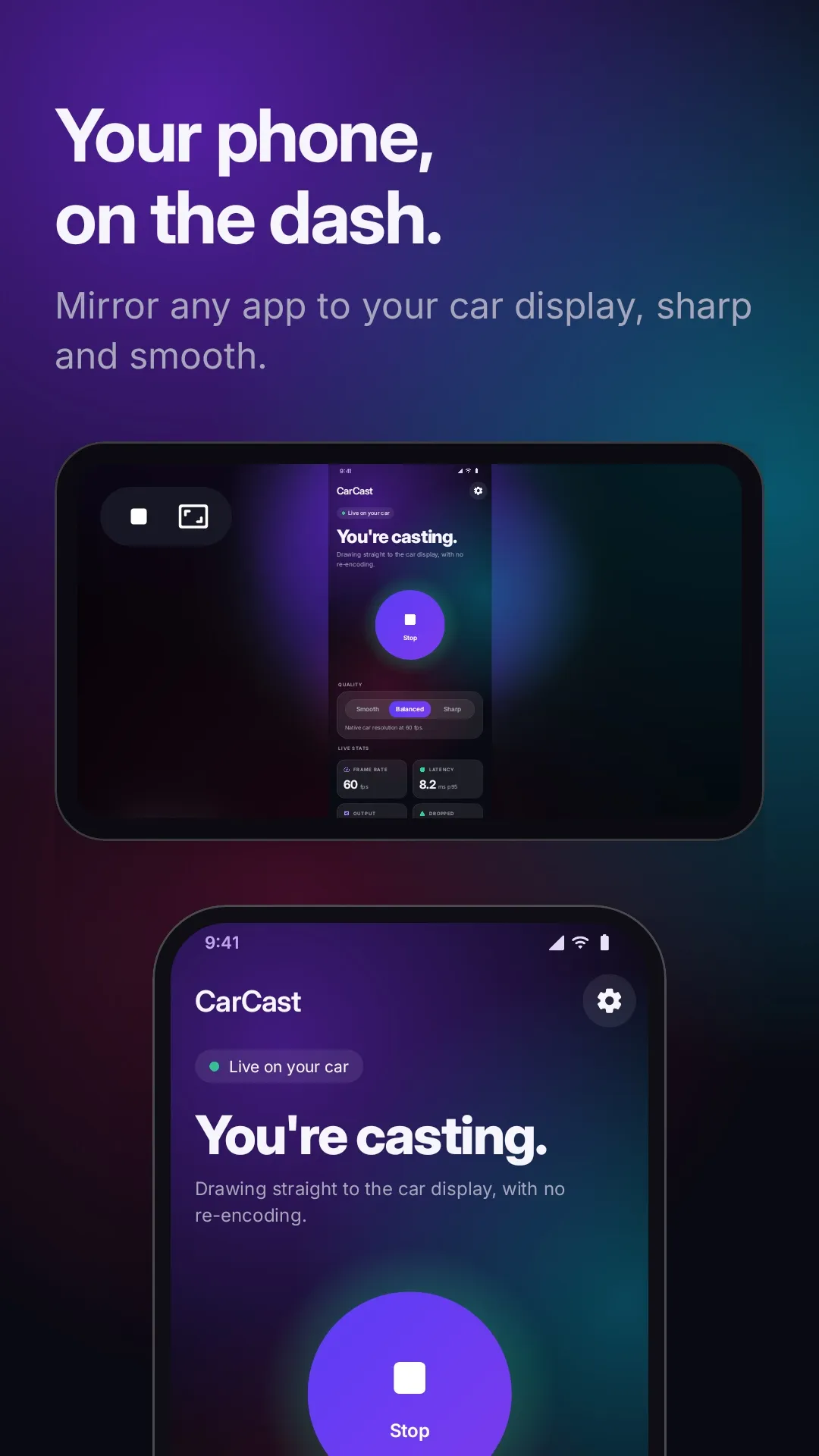
Mirror any app from your phone to your car’s display. Sharp, smooth, and with about one frame of added delay.
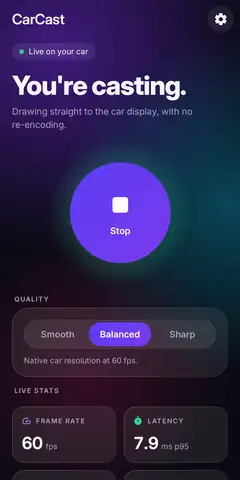
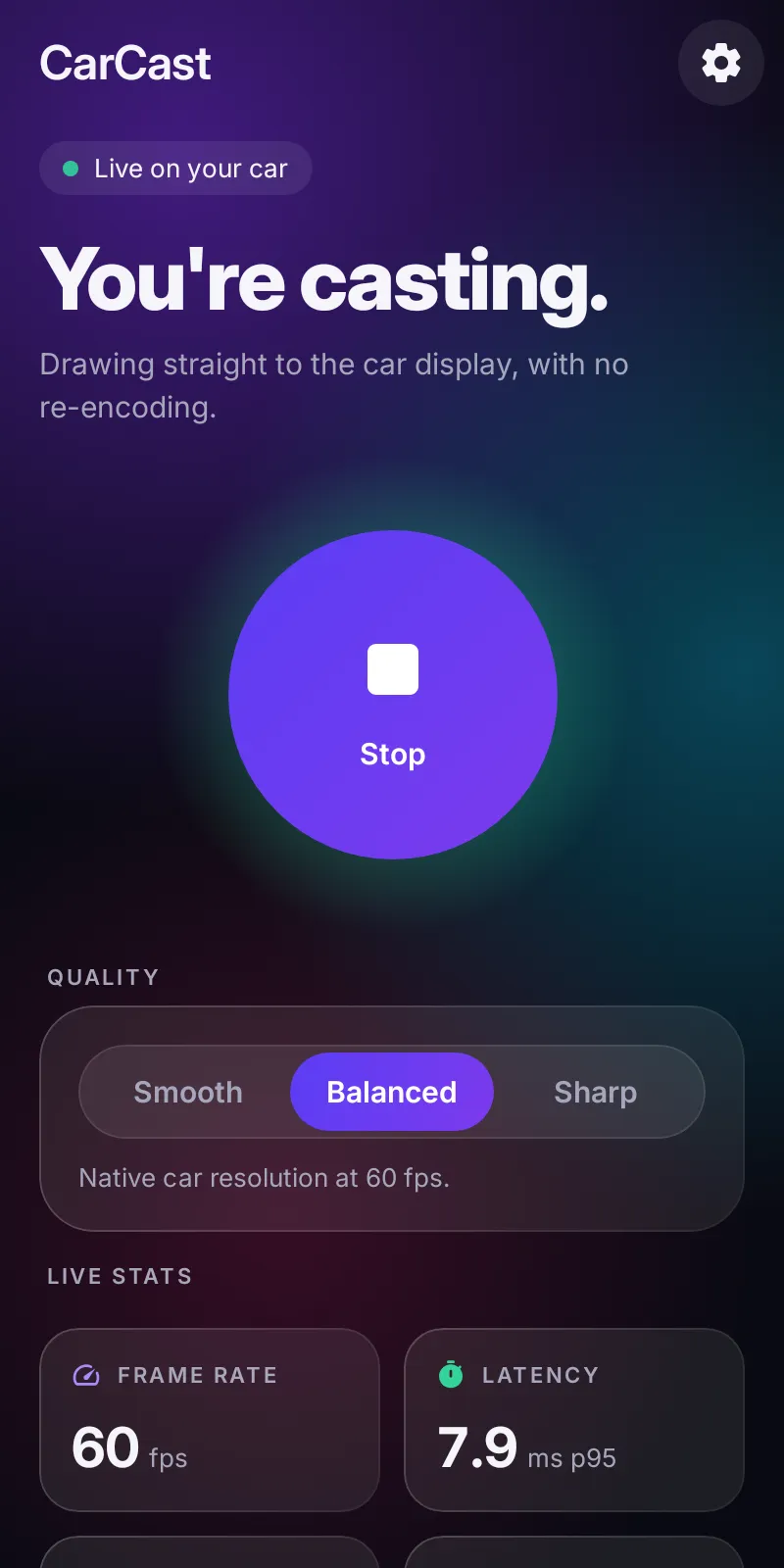
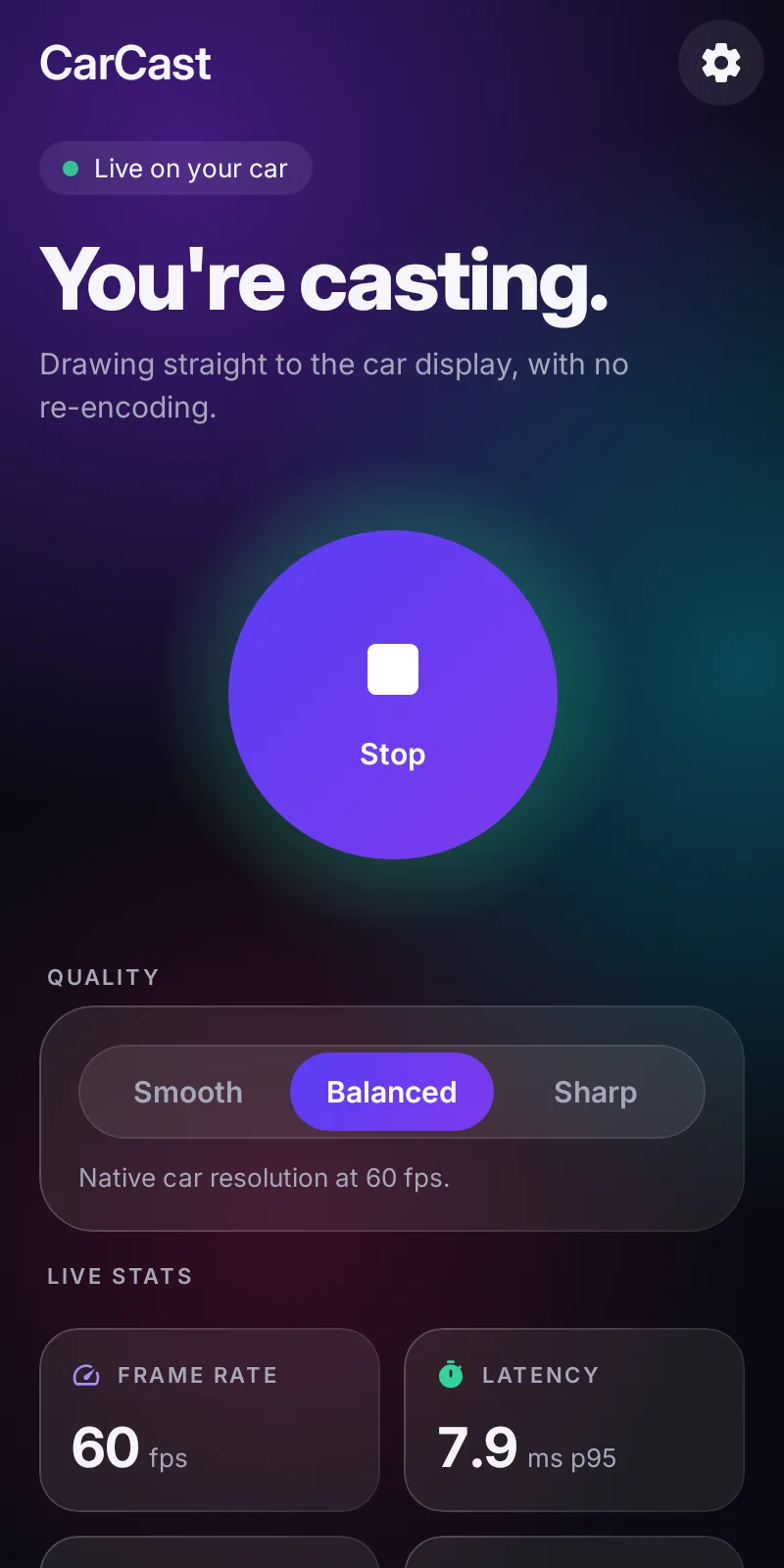
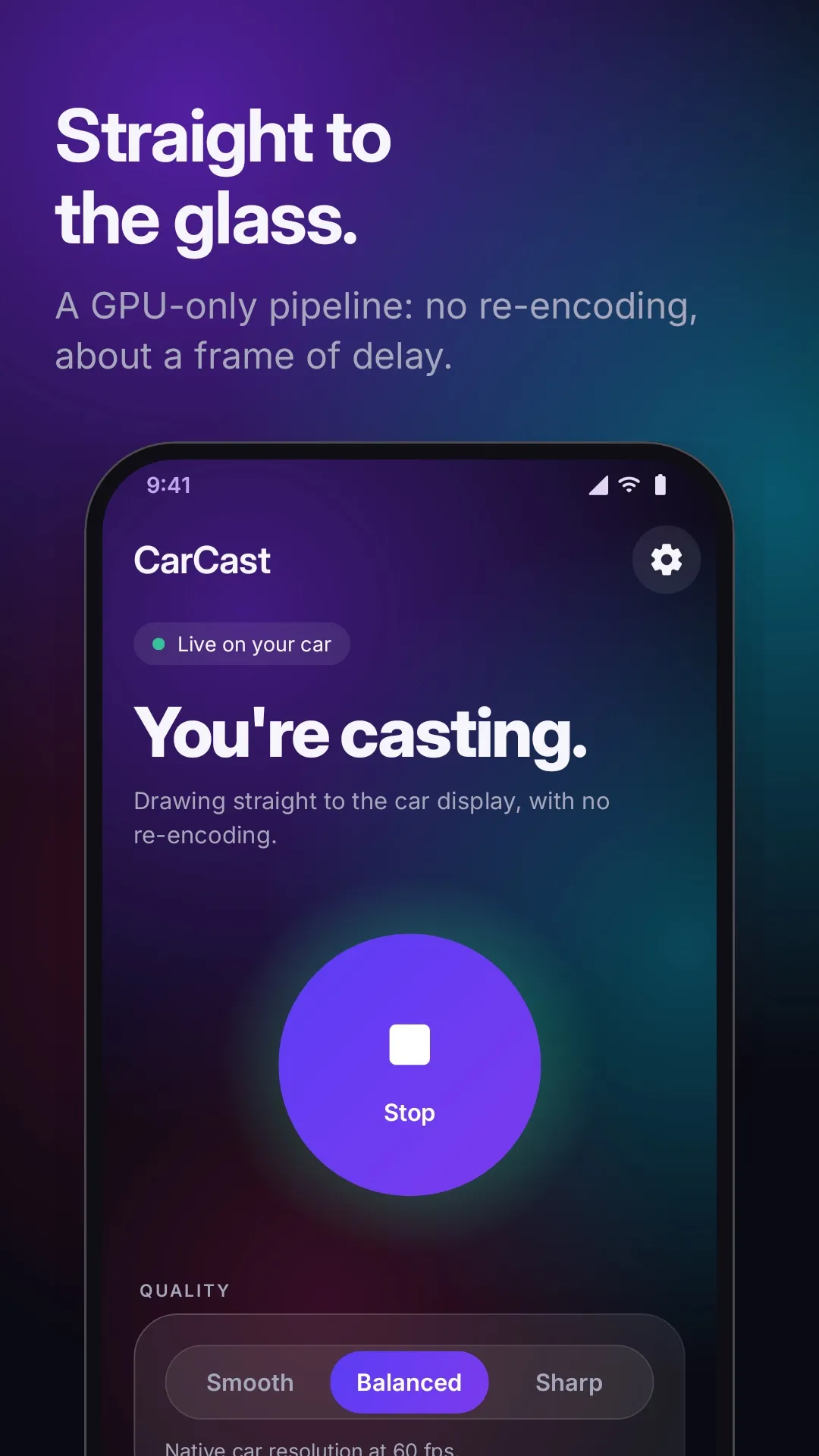
Straight to the glass
Most mirroring compresses your screen into a video, sends it somewhere, and decodes it again. CarCast skips all of that: each frame is drawn straight into Android Auto’s display surface on your phone’s GPU, and Android Auto carries it to the car like any navigation app.
Typical screen mirroring
CarCast
Android’s screen capture hands CarCast each frame the moment it’s drawn. Any app, including maps, music and messages.
An EGL/OpenGL renderer draws the frame into the car’s surface, sized to its display so pixels are scaled once.
Android Auto carries the picture to the car, wired or wireless, the same way it does for navigation apps.
Features
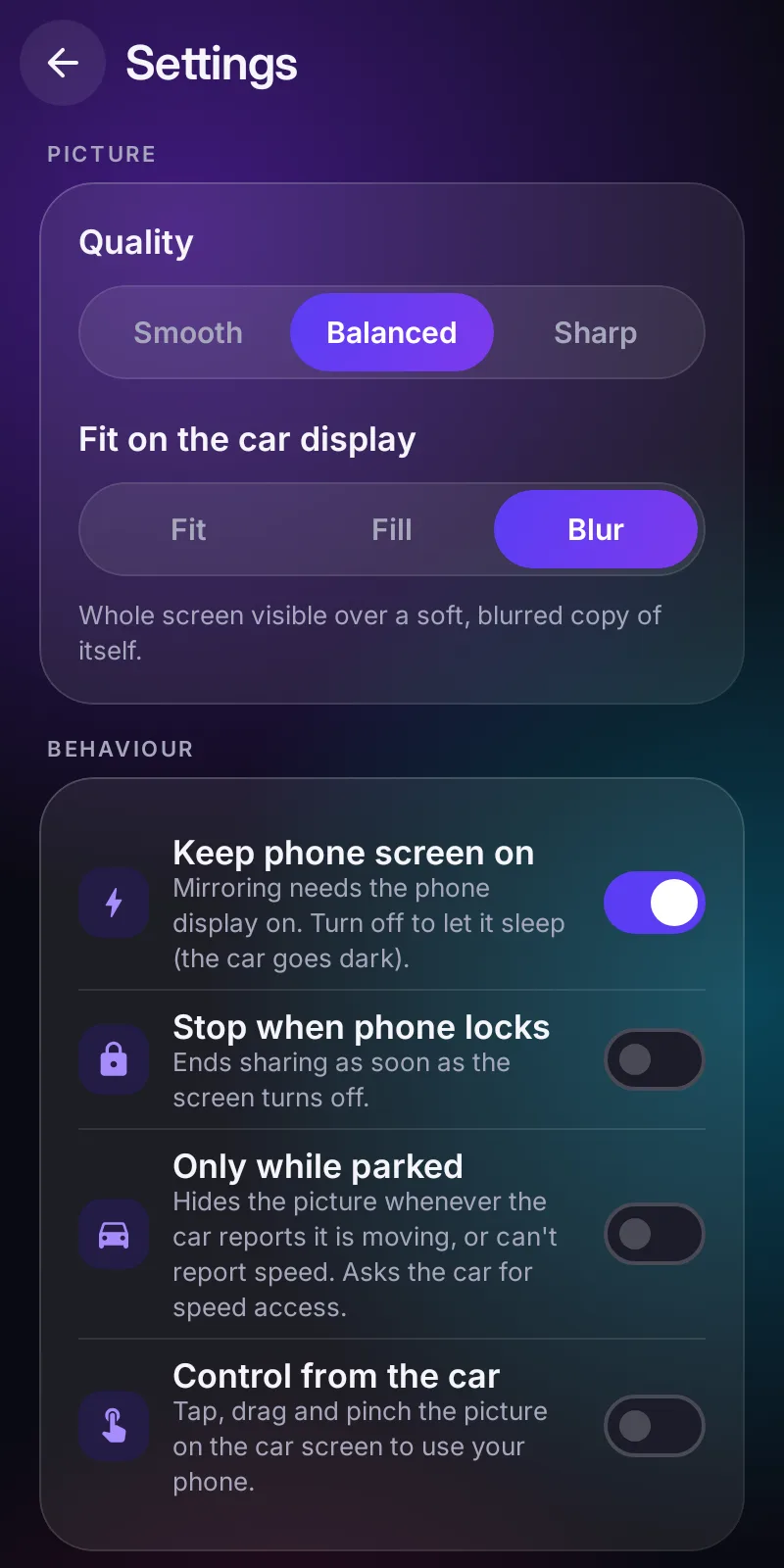
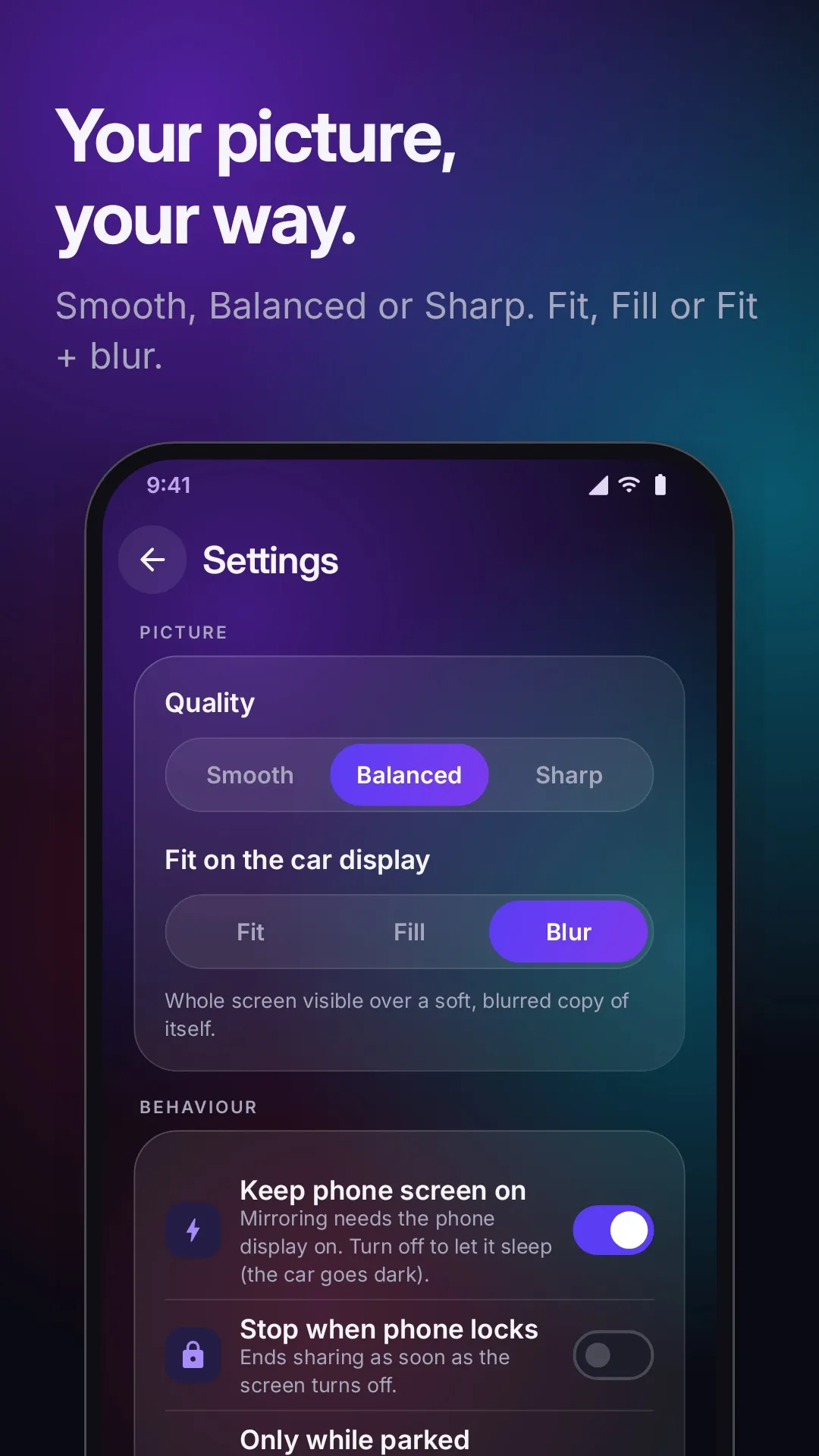
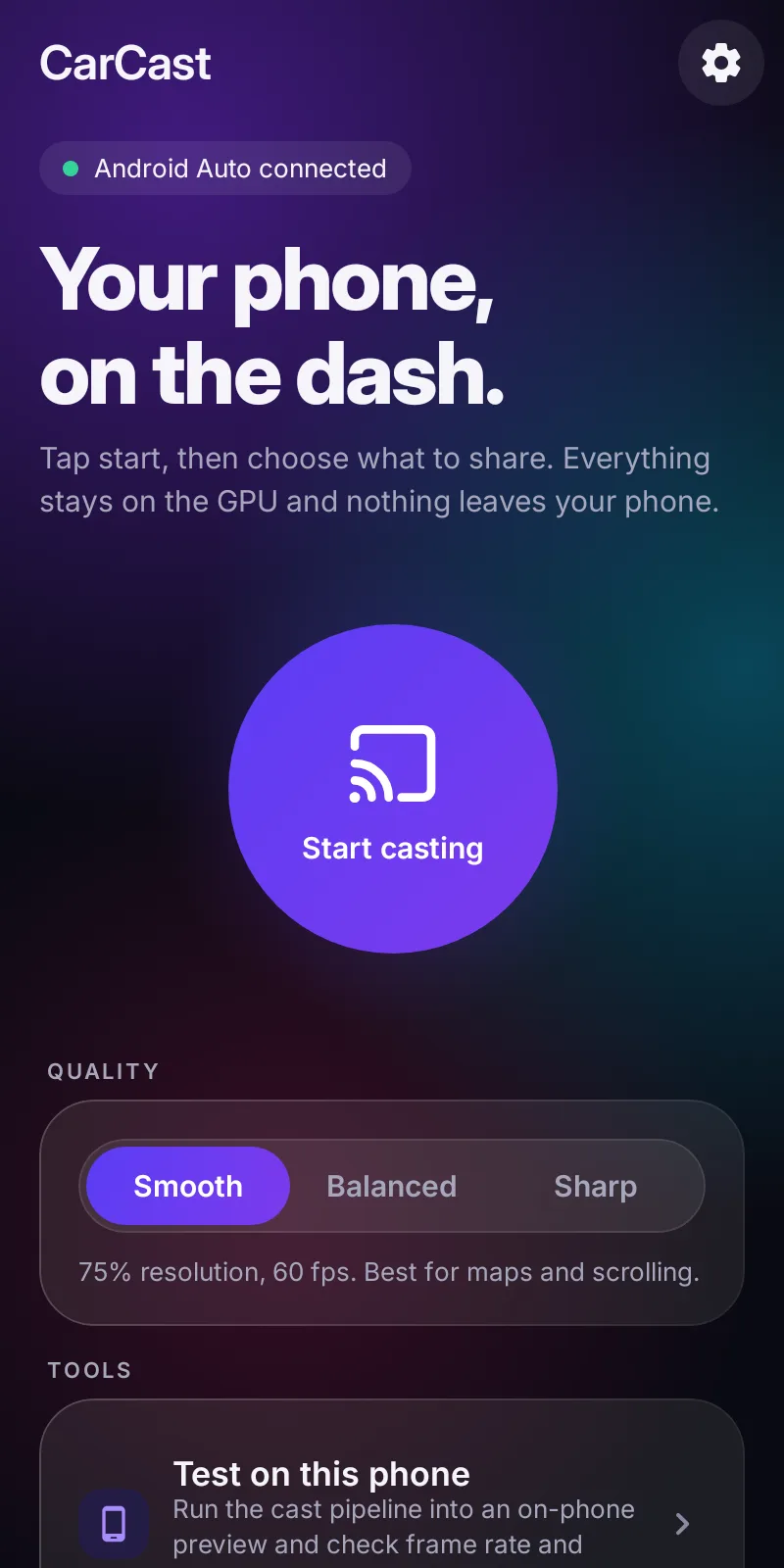
Choose between frame rate and detail, and decide how a tall phone screen fills a wide car display.
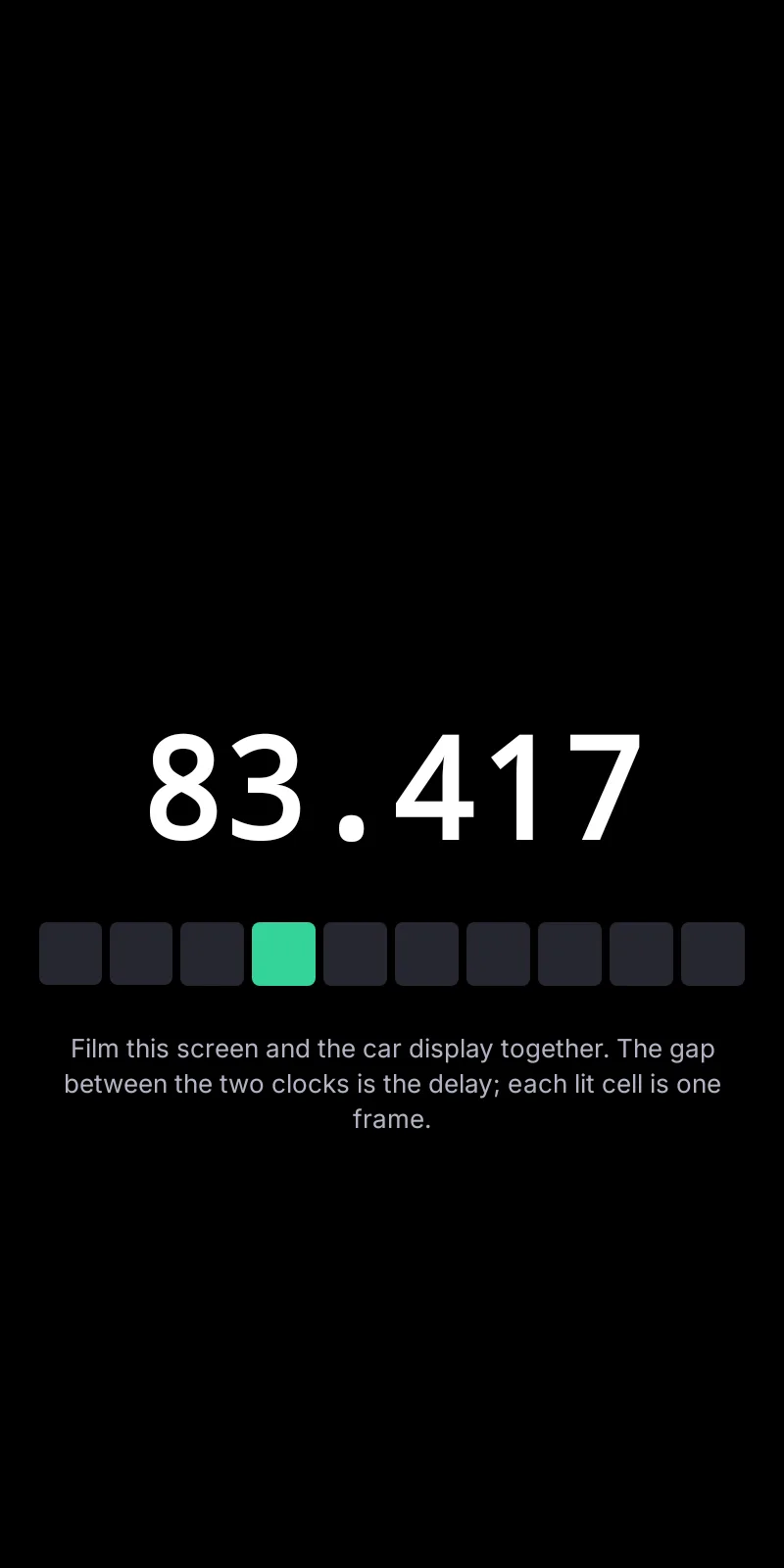
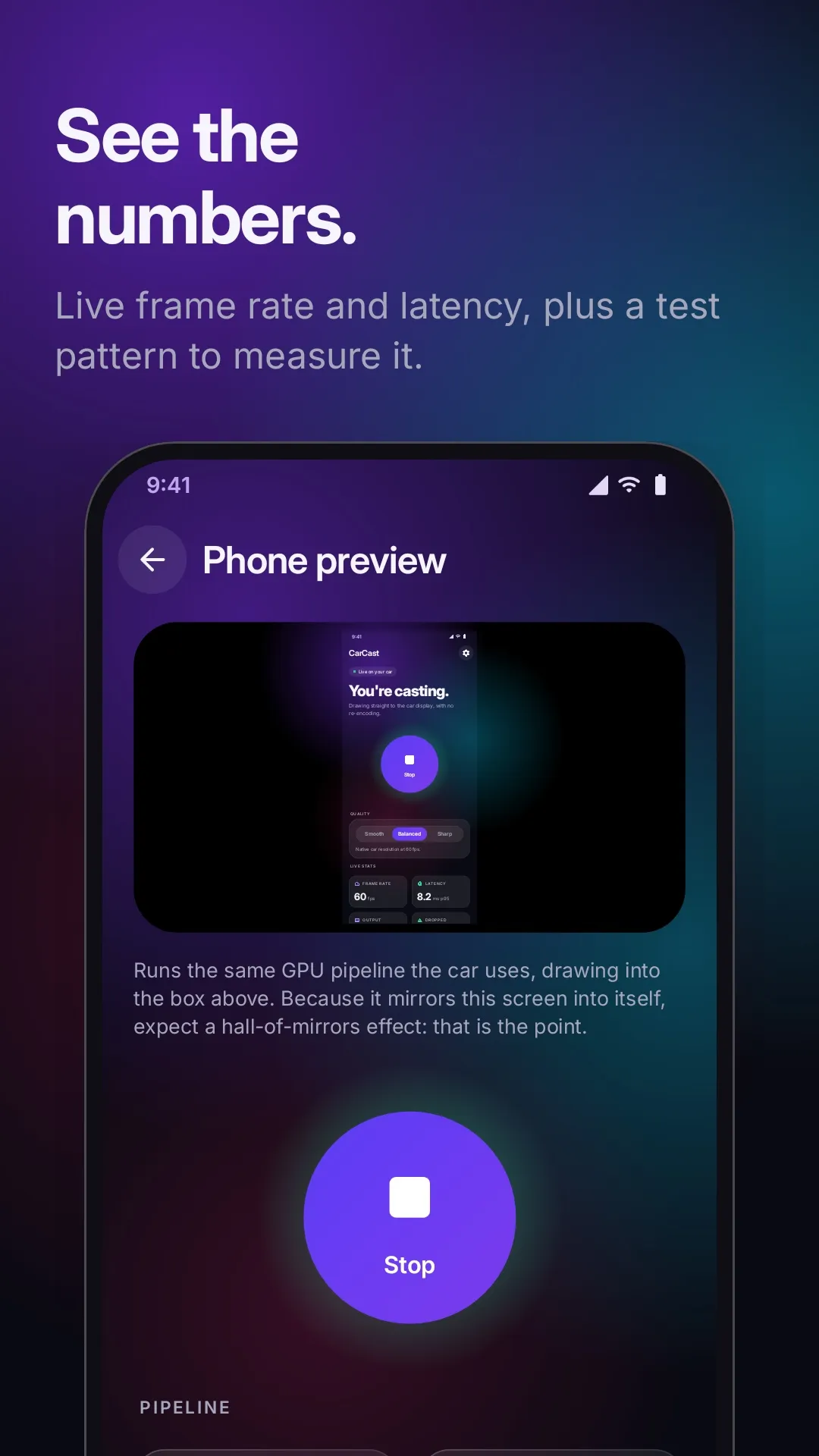
Don’t take our word for it. The built-in latency test shows a running clock on your phone. Film the phone and the car display together, and the gap between the two clocks is the delay. Each lit cell is one frame.
A live phone preview shows frame rate, latency, output resolution and dropped frames while you cast.
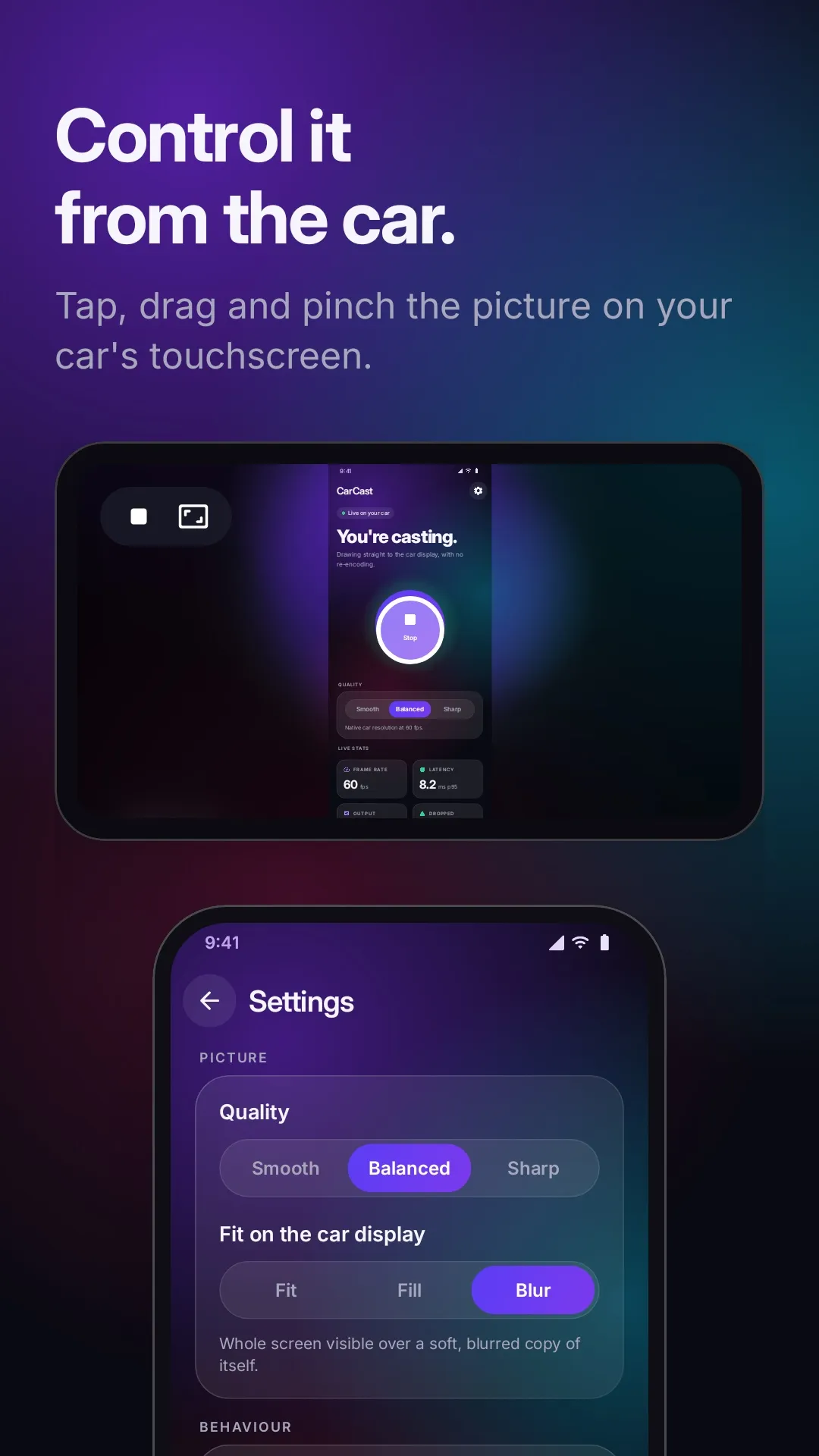
Tap, drag and pinch on your car’s touchscreen and the phone responds. Optional and off by default.
Hide the picture whenever the car reports it’s moving, or can’t report its speed.
Sharing ends when the car disconnects, after two minutes with nothing watching, or when the phone locks, if you like.
When the phone gets warm, CarCast backs off gracefully instead of stuttering.
Open CarCast from the car’s app launcher and confirm on the phone. No fiddling with the phone at the wheel.
A notification is visible the whole time you’re sharing, with a Stop button.
Private by design
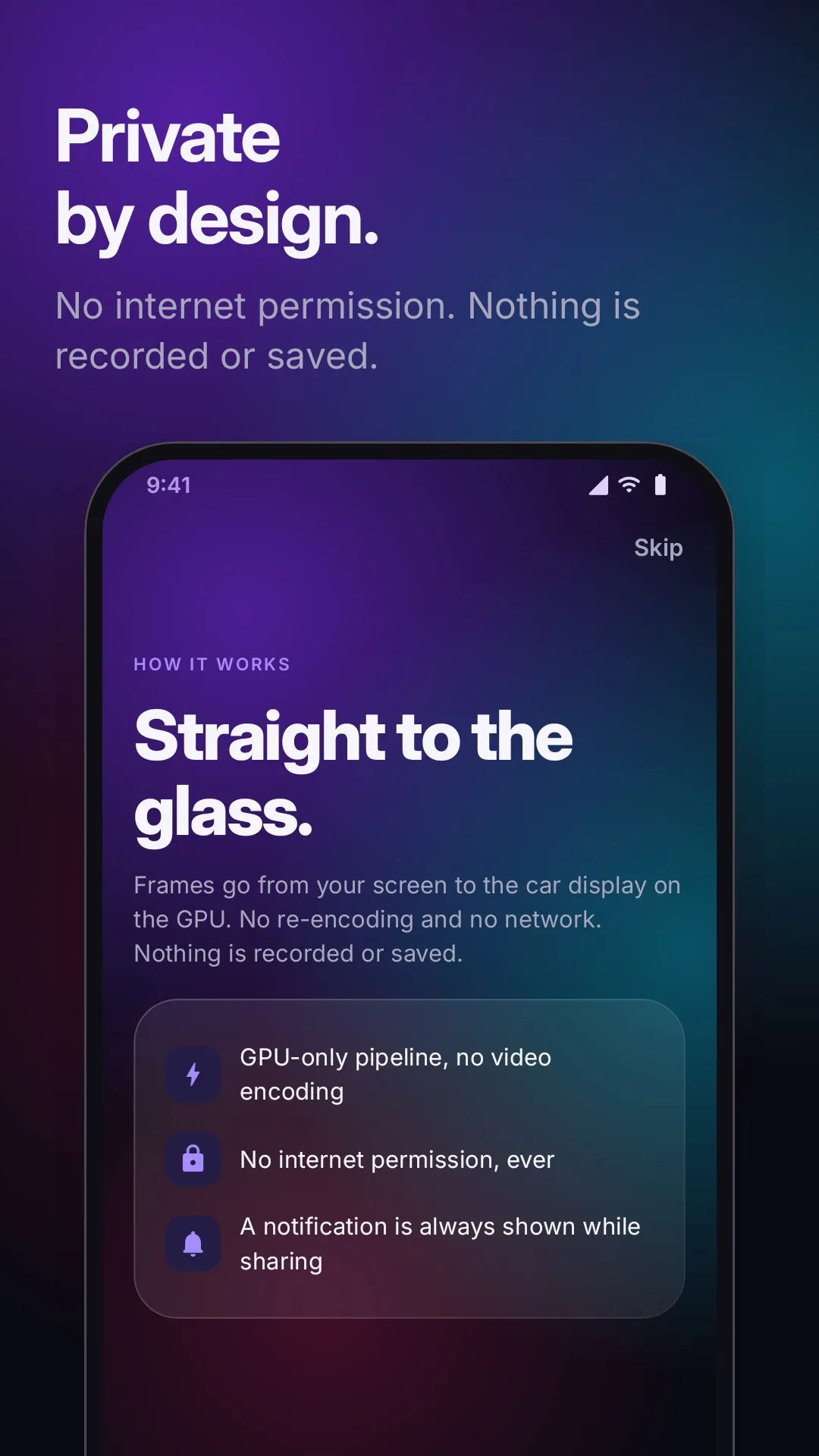
CarCast doesn’t ask for the internet permission, so it can’t send anything anywhere. Frames live only in graphics memory, and nothing is recorded or saved.
Read the privacy policySetup
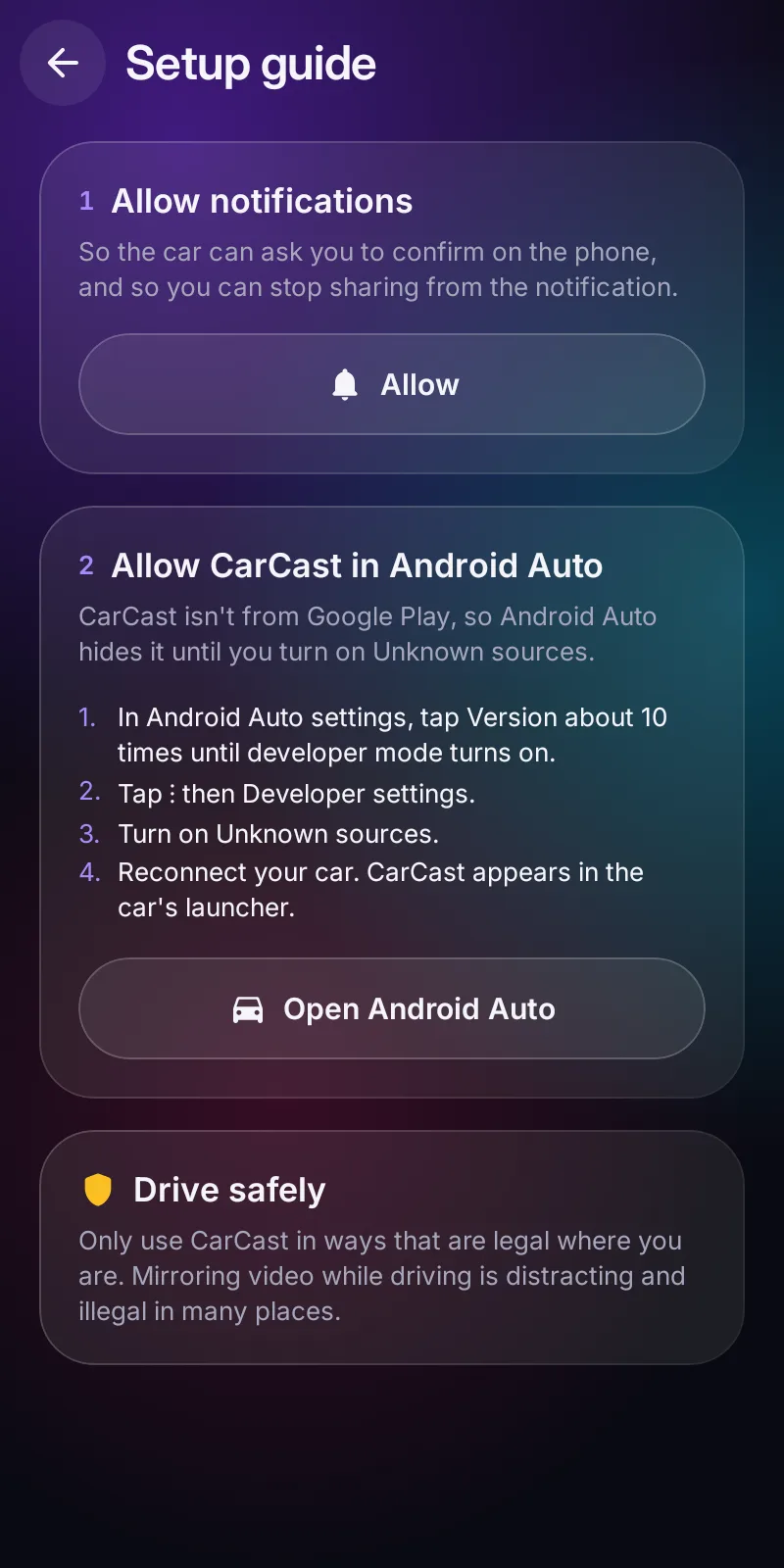
Open it once and allow notifications, so the car can ask you to confirm on the phone.
In Android Auto settings, tap Version about ten times to turn on developer mode. Then open Developer settings and turn on Unknown sources.
Plug in or connect wirelessly, open CarCast from the car’s app launcher, and tap Start.
Screenshots
FAQ
Google Play doesn’t allow screen-mirroring apps on Android Auto, so CarCast is installed directly. Android Auto then only shows it once you enable “Unknown sources” in its developer settings. The in-app setup guide walks you through it, and it takes about a minute.
Any car with Android Auto, wired or wireless, and an Android phone running Android 10 or newer. CarCast sizes the picture to your car’s display, so pixels are scaled only once.
Apps that block screenshots, such as banking apps and some video services, appear black. Android doesn’t let any app capture them, CarCast included.
No, and you shouldn’t. Only use CarCast in ways that are legal where you are. Turn on “Only while parked” and the picture hides whenever the car reports that it’s moving.
Frames never leave the graphics chip and nothing is encoded, so the work per frame is small. If the phone does get warm, CarCast lowers its frame rate gracefully instead of stuttering, and sharing stops by itself after two minutes with nothing watching.
Tap, drag and pinch the picture on your car’s touchscreen and your phone responds. It uses an Android accessibility service that can only perform the gestures you make on the car screen. It can’t read what’s on your screen, and it’s off until you turn it on.
CarCast is in beta for Android 10 and newer, with Android Auto.
Email for early access